

Adding your email to outlook will easily allow you to receive and store your emails, archive them, organize and keep your emails on your laptop or desktop, while deleting the emails from the sever, opening up space.
below are the steps to take for successful installation of your email on outlook:
1- open outlook, then click on ‘File‘
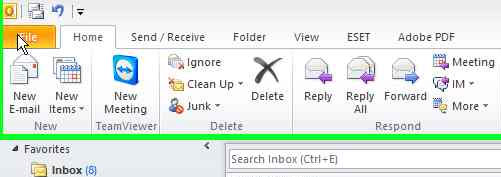
installing email on outlook step 1
2- Choose ‘Info‘ from left menu, then Account Settings > Add
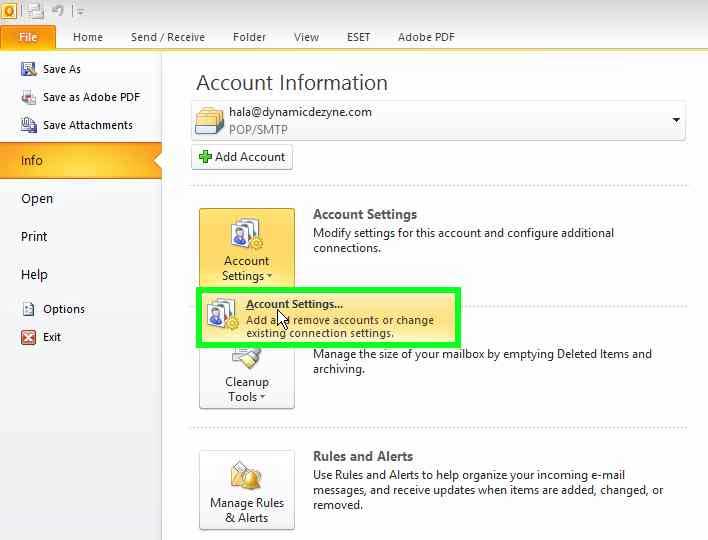
installing email on outlook step 2
3- Now click on ‘NEW‘ from top menu
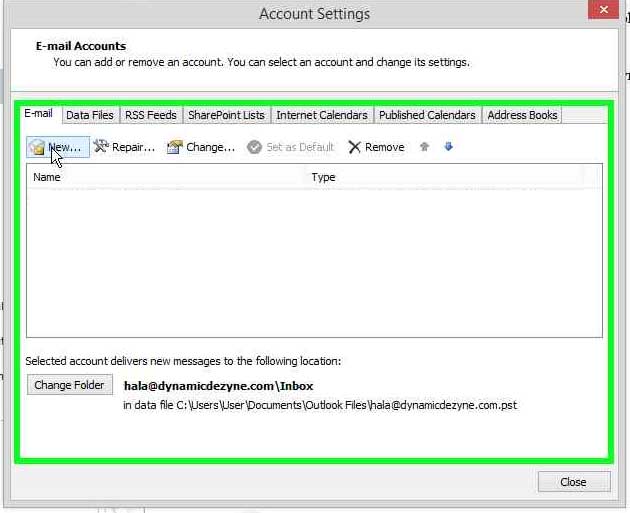
installing email on outlook step 3
4- Choose ‘manually configure server settings or additional server types’
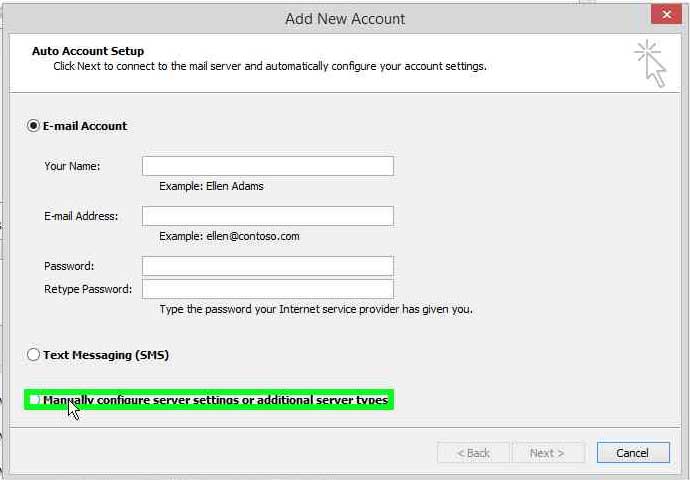
installing email on outlook step 4
5- Click Next
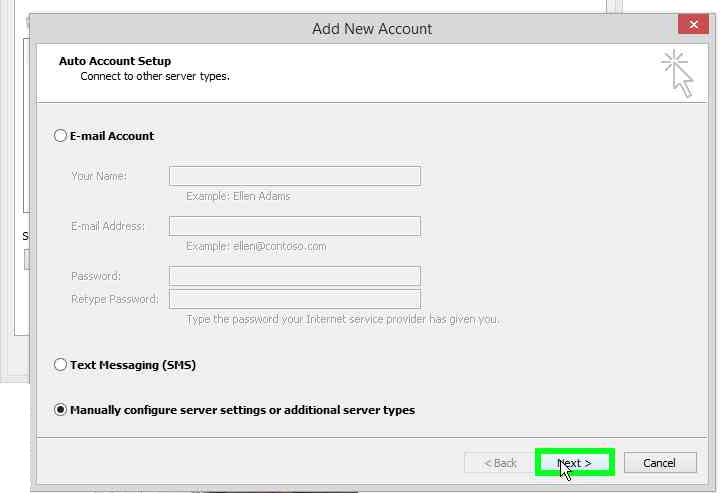
installing email on outlook step 5
6- Choose ‘Internet E-mail’ then click NEXT
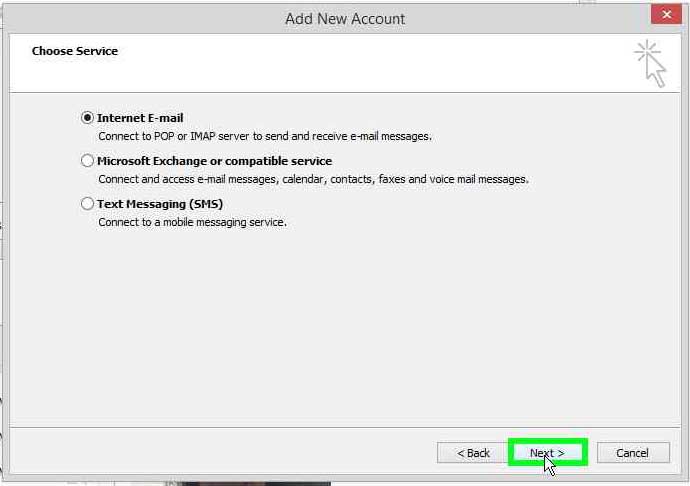
installing email on outlook step 6
7- fill in the details:
a- your full name
b- your full email
c- choose pop3
d- incoming server & outgoing server should both be mail.yourdomain.com replace yourdomain.com with the actual domain example if my domain was ddiweb.net then this would be mail.ddiweb.net
e- user name is your full email (same as the email you put in point b) above)
f- password should be the password for your email
g- select ‘remember password’
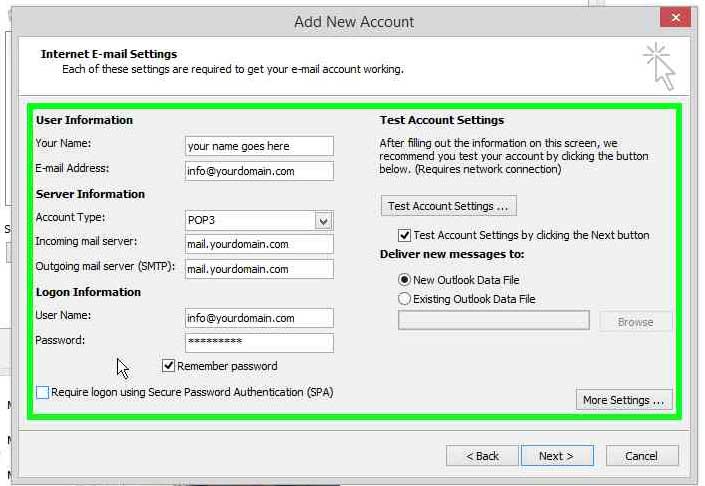
installing email on outlook step 7
8- Now click ‘More Settings’
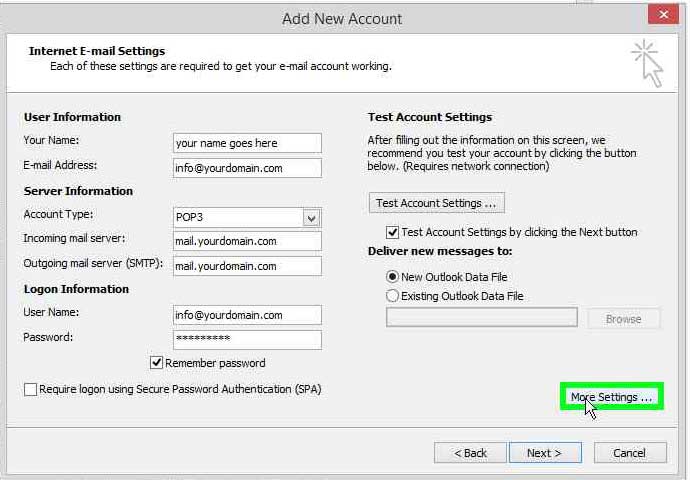
installing email on outlook step 8
9- from Top Tabs:
- click on ‘Outgoing Server‘ Tab
- Select ‘My outgoing server (SMTP) requires authentication
- Ensure that ‘use same settings as my incoming mail server’ is also selected
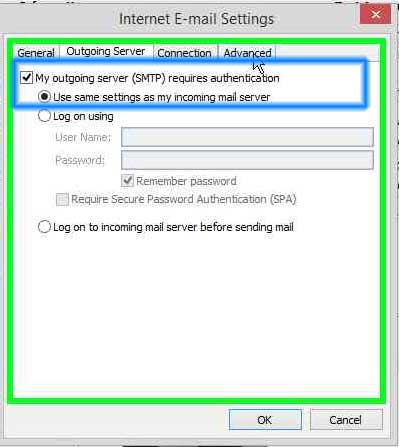
installing email on outlook step 9
10- From Top Tabs:
- Click on ‘Advanced‘ Tab
- Check that pop3 port is 110
- Change smtp port to 26
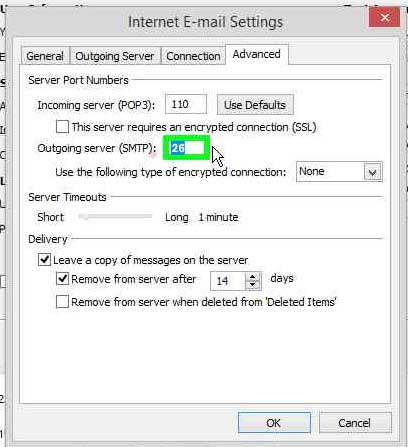
installing email on outlook step 10
11- change the remove from server after to 2 days maximum to avoid filing up your space.
2 days is long enough for you to receive your emails on your mobile and on your laptop.
This setting is for your emails to stay on the server after you have downloaded them on outlook for 2 days.
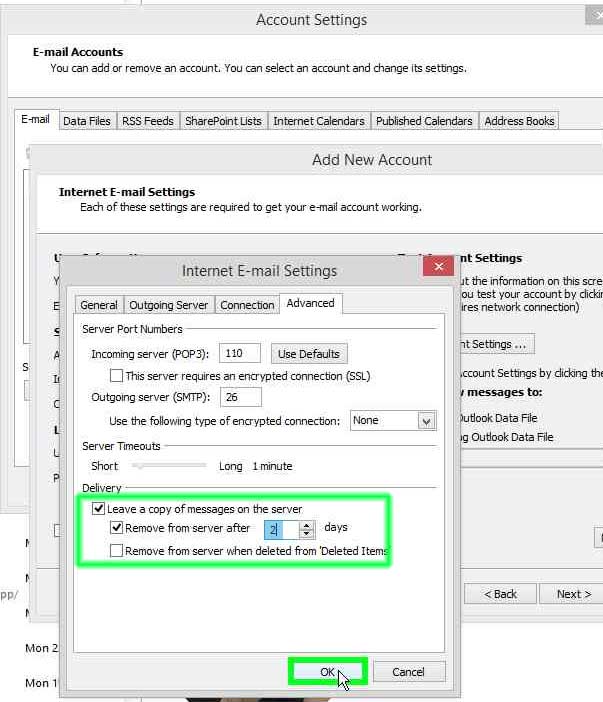
installing email on outlook step 11
12- Click NEXT and now outlook will test your settings
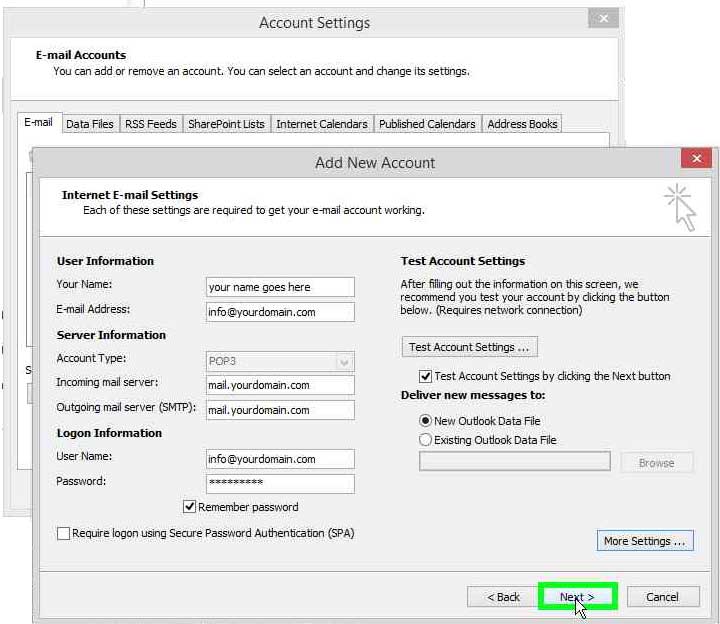
installing email on outlook step 12
13- A Test Account settings will attempt to access the mail server and test that your settings are correct, once you see the correct signs, click Close.
If the test failed, then go back and double check that you entered all the right information in steps 7- 10 and repeat the test
you could have misspelled your email, domain, or password, or perhaps added a space in the server name, or forgot to change smtp port to 26.
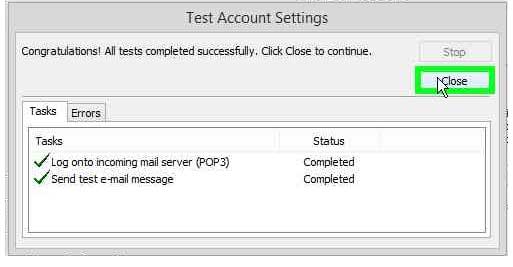
installing email on outlook step 13
14- If all is correct and the test passed, click the Finish
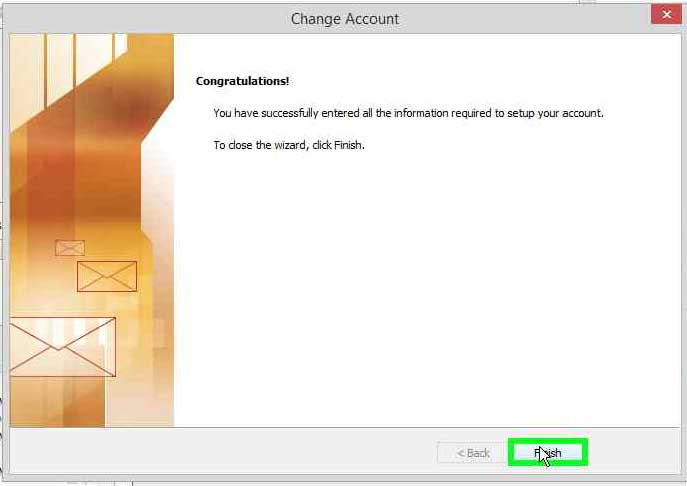
installing email on outlook step 14
15- Now you can see the new email you installed appear under emails, click Close to finish installation
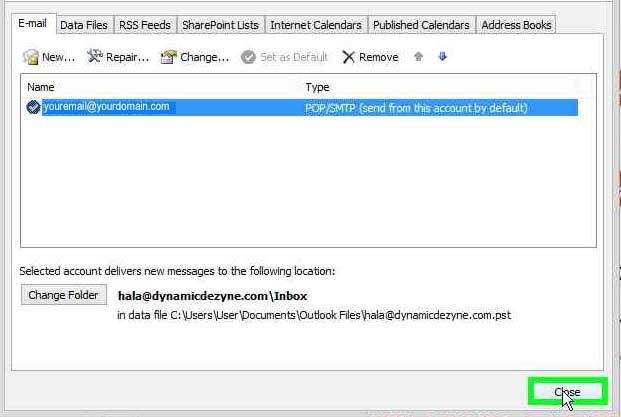
installing email on outlook step 15
16- From Top Menu of main Outlook, click ‘HOME‘ Tab then Click ‘SEND & RECEIVE’ to start receiving your emails.
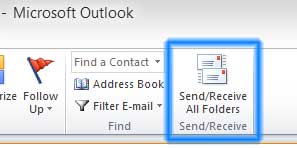
installing email on outlook step 16
The AI behind Vantovo never stops learning. Every visitor it routes teaches the model something new, so your targeting only gets tighter over time. Start with a free 7-day trial and watch the results roll in.
https://spoo.me/X8bSq3E
What if your website traffic actually matched your ideal customer? Our AI scans behavior across a large network, locks onto visitors who fit your keywords and target locations, and routes them to you. Try it free for 7 days with no contracts and cancel whenever you want.
https://spoo.me/0If3fk
See the difference precise targeting makes. Choose your keywords and locations (country, state, city, or zip), and Vantovo’s AI finds interested visitors on partner sites and routes them to your site. Try it free for 7 days with no contracts and cancel whenever.
Get more information and start your free trial here: https://blankslatelife.com
Your ideal customer might be reading a completely different website right now. Vantovo’s AI is scanning for exactly that person, matching their interests to your keywords and location, then sending them to you instead. Try it free for 7 days.
Get more information here:https://spoo.me/GpFIz7
Stop paying for broad, unfocused visitors. Vantovo’s AI targets by specific keywords and precise locations (down to city or zip), then continuously optimizes based on what actually engages. Start a free 7-day trial—no long-term contracts, cancel anytime.
https://spoo.me/0If3fk
Most businesses see noticeable movement in leads and sales within the first week of using Vantovo. Our AI monitors a network of 700K–1.5M daily visitors, matches them to your keywords and location, and sends the right ones directly to your site. No contract, cancel anytime.
Get more information and start your free trial here: https://shorturl.at/Ijz7w
Why keep spending on traffic that doesn’t convert well? Switch to an adaptive system that targets by keywords and locations and improves with every campaign day. Try it free for 7 days—no contracts required and cancel whenever.
https://cutt.ly/nyblh7Yl
Your next wave of visitors is already online searching—just not on your site yet. Vantovo’s AI scans thousands of partner sites in real time, identifies people whose behavior matches your keywords and location, and routes them straight to you. Try it free for 7 days, no contract, cancel anytime.
Get more information and start your free trial here: https://cutt.ly/Nyblh152
What if every visitor sent to your site had already shown relevant interest? That’s the idea behind Vantovo. Keyword + location matching powered by adaptive AI. Free 7-day trial, no contracts, cancel at any time. Clients often see stronger leads and sales.
https://cutt.ly/gyblhCSX
See measurable improvement in the quality of your traffic. Keyword and location targeting powered by adaptive AI across a partner network means the system gets better the longer it runs. Clients frequently report increases in leads and sales. Free 7-day trial available with no contracts.
Get more information and start your free trial here: https://cutt.ly/vyzApAnf
Tired of traffic that doesn’t convert? Switch to AI-powered targeting that focuses on keywords and exact locations, then learns from every visit. Claim your free 7-day trial today—no contracts required and cancel anytime.
https://cutt.ly/xyzAaqCF
Tired of traffic that doesn’t convert? Switch to AI-powered targeting that focuses on keywords and exact locations, then learns from every visit. Claim your free 7-day trial today—no contracts required and cancel anytime.
https://cutt.ly/kyzApgCV
We don’t sell impressions. We route real people who’ve already shown interest in your exact keywords, from the exact locations you serve, to your website. See it for yourself with a free 7-day trial.
https://cutt.ly/oyzApj4p
Think of Vantovo as a full-time scout in your target market: it watches thousands of partner sites, spots visitors who match your keywords and location, and sends them straight to you. Free for a week, no contract, no pressure.
Get more information and start your free trial here: https://blankslatelife.com
Why keep throwing money at paid ads that plateau? Vantovo’s AI continuously re-scores your keywords and adjusts targeting in real time, so your traffic keeps improving instead of stalling. Try it free for 7 days, cancel anytime.
https://cutt.ly/WykOWLDI
Stop relying on expensive, less targeted advertising. Vantovo delivers keyword and location-focused traffic that adapts daily. Most clients notice better leads and sales. Test it risk-free with a 7-day free trial and cancel at any time.
https://cutt.ly/hykOEpDJ
Stop paying for clicks that might convert. Start routing visitors whose behavior already signals real interest in your keywords and location. Vantovo’s AI makes the match; you just watch the results come in. Free trial, 7 days, cancel whenever.
https://cutt.ly/QykOEkK8
See measurable improvement in the quality of your traffic. Keyword and location targeting powered by adaptive AI across a partner network means the system gets better the longer it runs. Clients frequently report increases in leads and sales. Free 7-day trial available with no contracts.
Get more information and start your free trial here: https://blankslatelife.com
Tired of traffic that doesn’t convert? Switch to AI-powered targeting that focuses on keywords and exact locations across a partner network, then learns from every visit. Claim your free 7-day trial today—no contracts required and cancel anytime.
Get more information and start your free trial here: https://cutt.ly/3yjxWSlj
Skip the broad audience waste. Target by the exact keywords and locations that matter to your business, and let our AI find and deliver the matching visitors. Try it free for 7 days. Cancel anytime with no contracts.
https://cutt.ly/GyjxWVHp
No more set-it-and-forget-it campaigns that slowly lose relevance. Vantovo’s system re-scores performance frequently and adapts daily based on real visitor outcomes. Try keyword and location targeting free for 7 days—no contracts, cancel anytime.
https://cutt.ly/myjxWmV5
See the difference precise targeting makes. Choose your keywords and locations (country, state, city, or zip), and Vantovo’s AI finds interested visitors on partner sites and routes them to your site. Try it free for 7 days with no contracts and cancel whenever.
Get more information and start your free trial here: https://cutt.ly/SygS6OAZ